
The BU UCU Workload Planning Tool is available here.
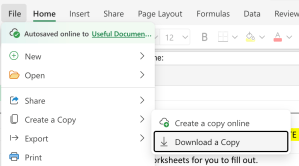
Please note: you will need to go to File -> Create a Copy -> Download a Copy to have a copy of the spreadsheet you can edit.
You have both a video and a text/screenshot walkthrough below.
To report issues:
- Use the BU UCU WLP Tool Feedback Form
- Give a brief description of what you are trying to accomplish, and what is not functioning (or what is missing)
- Upload saved version of your worksheet, and/or screenshot(s) of the problem area
Video Walkthrough
Optional: Research & Professional Practice Planning Tabs
Text Walkthrough
1. Start Here Tab
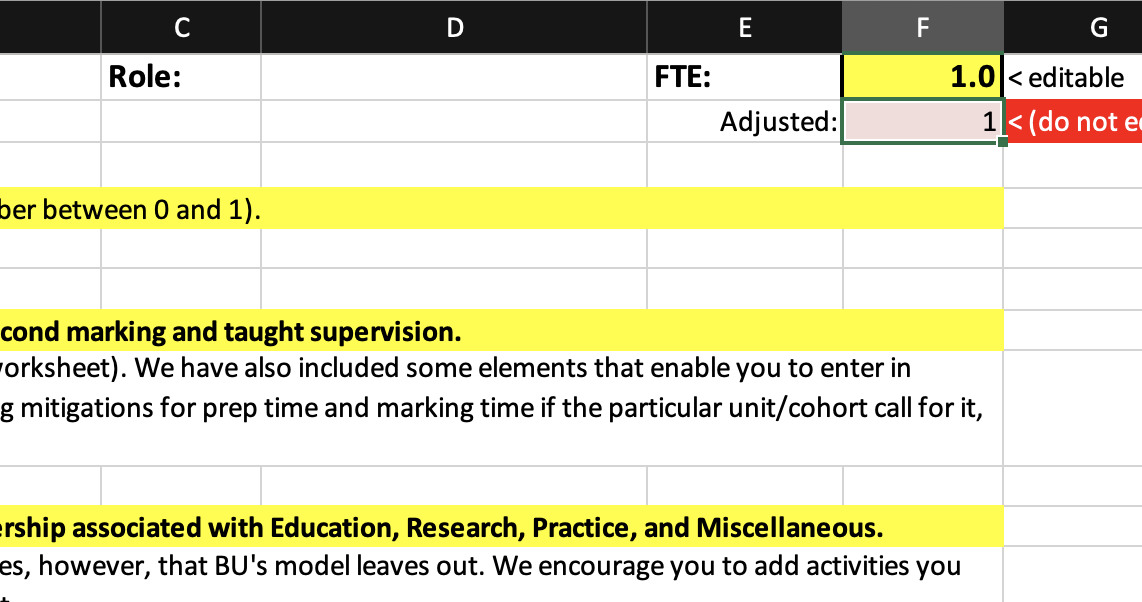
- FTE Field: Enter your actual FTE (e.g., 0.8 for 80%). Do not edit any red-highlighted fields.
- Instruction Highlights: Yellow-highlighted cells indicate places where you need to input data.
2. Planning & Teaching Units Tab
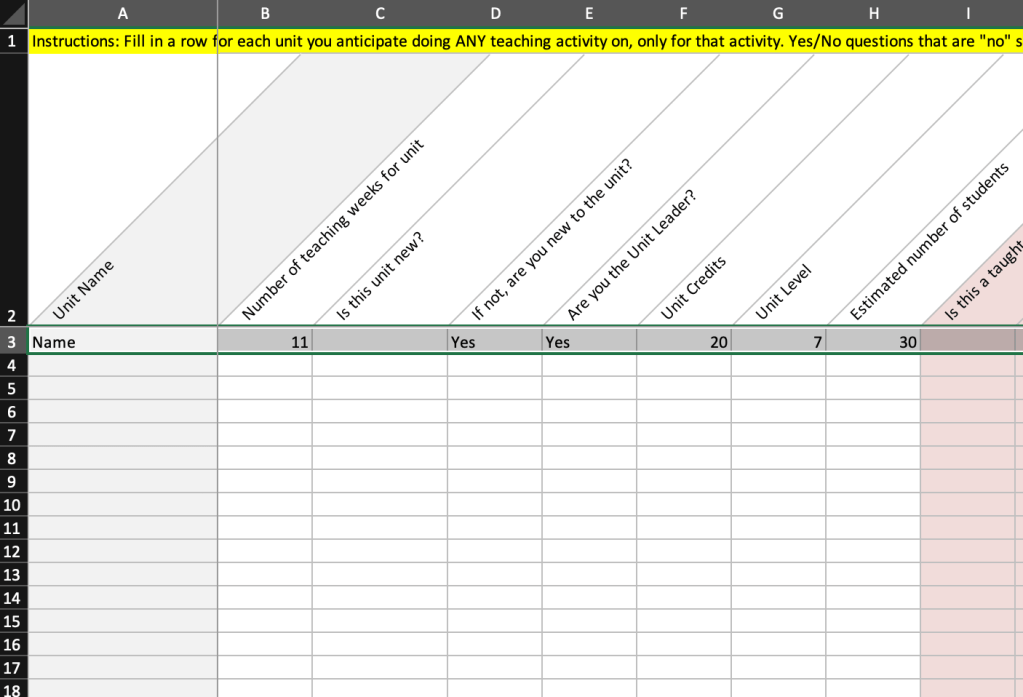
- Each Row = One Teaching Unit
- Fill in:
- Unit name, duration
- Whether the unit is new to you
- Unit Leader? (tick box)
- Credits and level (numeric, e.g. 20 credits, Level 7)
- Number of students
- Assessment type and length (for calculating marking)
- Lecture and tutorial/contact hours per week, over how many weeks
- Tutorial groups (if divided)
- Supplemental Inputs:
- % increase for unit complexity, reasonable adjustments, or team coordination
- Marking Time:
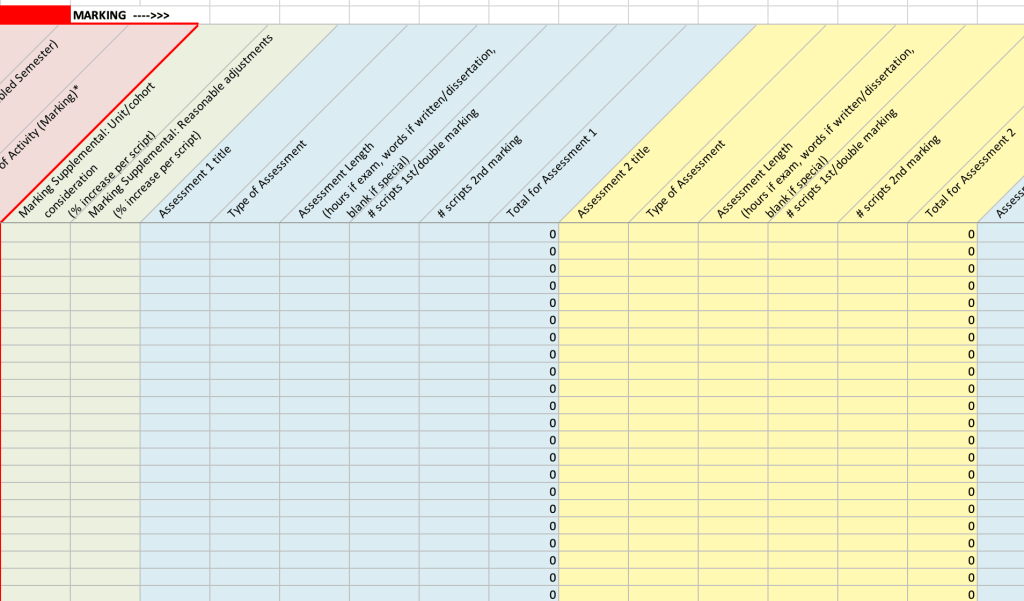
- Space for assessments is to the RIGHT of the pink calculated columns
- Supplemental inputs allow % increase for unit/cohort complexity, reasonable adjustments
- For each assessment on unit, fill in assessment title.
- Select assessment type (Exam, Written Assessment, Special Assessment, Dissertation)
- Special assessments are those that don’t fit into exam/written, such as mixed media, special projects, oral presentations, videos, etc. They receive the max marking time automatically.
- Fill in assessment length (#hours if exam, #words if written/dissertation)
- Fill in how many scripts you are 1st or double marking, then how many you are 2nd marking (if any).
- Totals will appear in calculated columns.
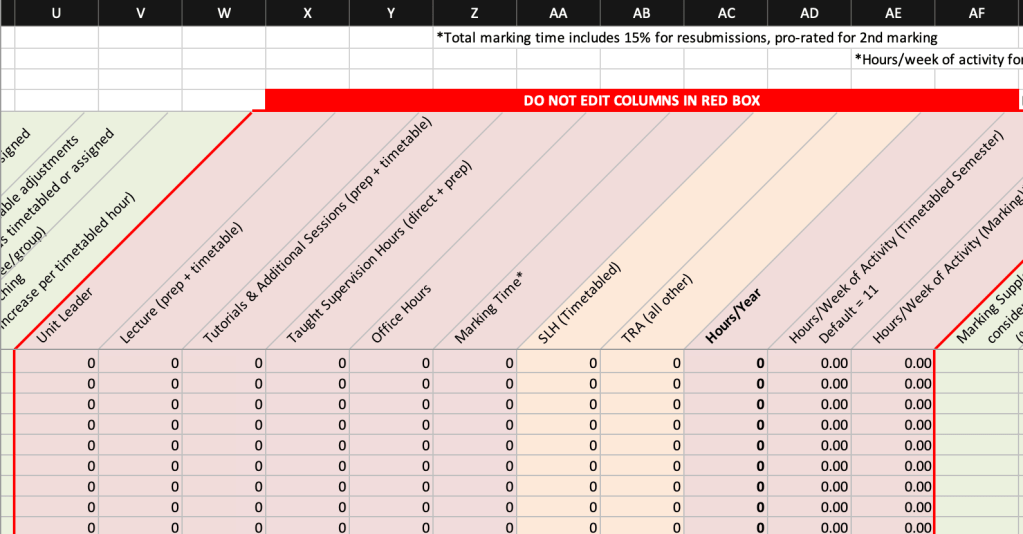
- Red Boxes (Auto Calculated — DO NOT EDIT!):
- Unit leadership, prep, lecture/tutorial hours
- Office hours (based on number of students)
- Marking (with 15% resubmission buffer, as per BU guidance)
- Weekly and annual workload calculated for each unit
3. Admin, Citizenship & Leadership Tab
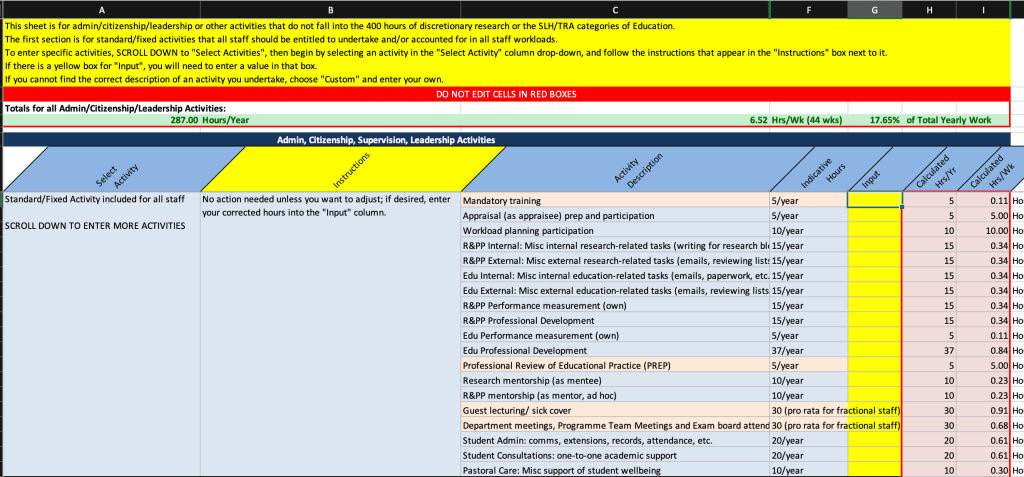
- Top Section: Standard/Fixed activities included with all academic staff workloads in this model.
- All activities in this section are automatically included in your workload estimate
- If you need to change the estimates, enter the corrected hours in the yellow “Input” column.
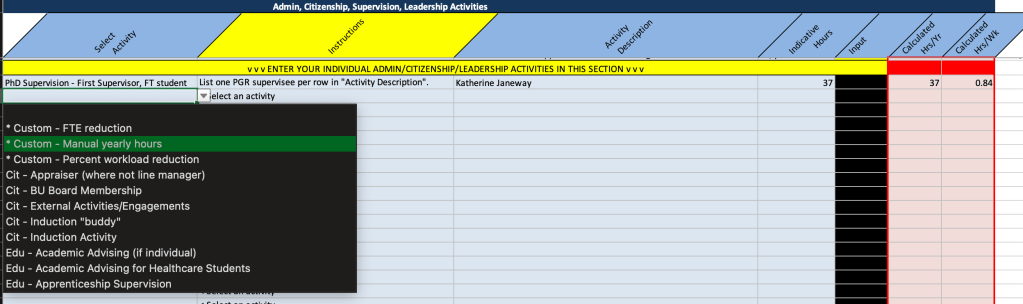
- Lower Section: Repeatable, varied activities (e.g., PhD supervision, committees, clearing)
- Choose activity from drop-down; instructions for that activity will appear
- Enter description if needed (e.g., student name, role, activity)
- Fill in input column if instructed.
- Note: you can add custom activities that aren’t in the fixed/calculated hours list. Use this for roles/activities you can’t find elsewhere, or to add supplemental hours to a fixed-hours activity.
- Calculated Columns (DO NOT EDIT):
- Auto-filled indicative hours, hours per year, and per week
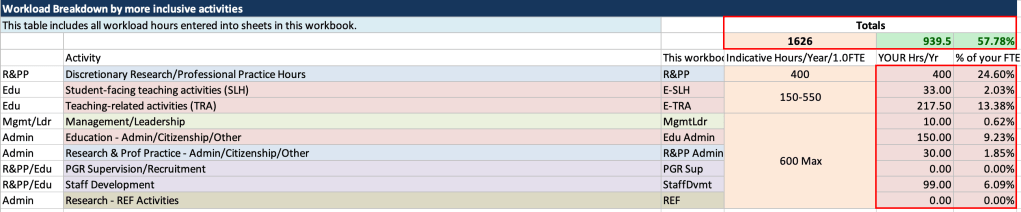
4. Summary Tables (Start Here Tab)
- BU Classification Summary:
- Based on only BU-acknowledged activities (orange-highlighted)
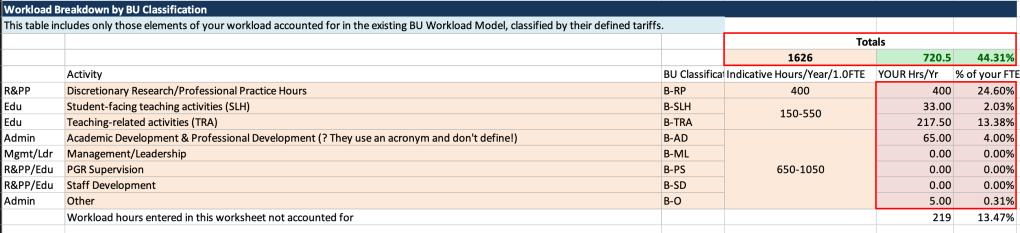
- Actual Total Summary:
- Based on everything you input across the workbook
- Watch for differences between these two: shows what’s left out by BU
- Turns red when workload exceeds 95% of FTE
5. Optional Worksheets
- Research Planner:
- Left: General activities (e.g., peer review, examining theses)
- Choose input type: hours per year, days, etc.
- Right: By project (e.g., grant work)
- Select calculation type (e.g., hours/week, FTE%)
- Add project-specific activities
- Total feeds into overall research hours
- Left: General activities (e.g., peer review, examining theses)
- Targets & Gantt Charts:
- For personal planning only
- Update years and tasks as needed
6. Activities Index
- Full list of activities used throughout the workbook
- Orange = drawn from BU tariff documentation
- Others = based on surveys, research, sector comparisons
Final Notes:
- Do not edit red-bordered cells (formulas)
- Use this tool to advocate for a fair, transparent, and healthy workload
- Share with line managers to assist with planning and negotiation
Discover more from Bournemouth University University and College Union (BU UCU)
Subscribe to get the latest posts sent to your email.
